

Setup
Pair the motor to the remote and set the limits
Pairing uses the Program button on the motor head and a channel on the 16-channel remote. Once paired, you teach the motor where the top and bottom are — always the top limit first. Every jiggle of the blind is the motor telling you the step worked.
The short answer
Pairing links one motor to one channel on the remote: select the channel, hold the Program button on the motor head (about a second, until it jiggles), then press Up. The blind jiggles again to confirm.
Setting the limits teaches the motor where to stop. You always set the top limit first, then the bottom, using the button inside the Setting Hole on the remote. You do this for each motor on each channel.
The 16-channel remote means each blind can sit on its own channel, or you can group several blinds so one channel moves them together — grouped blinds live in the CC channel. If a step reads differently on your supplied instruction sheet, call DIY support on 08 8359 5935.
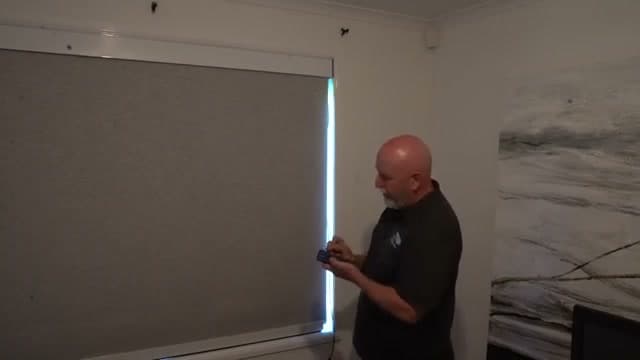
John walks through the full install, including pairing the motor and setting the top and bottom limits.
Pairing and limits
How to pair and set up the motor
- 01
Pair the motor to a remote channel
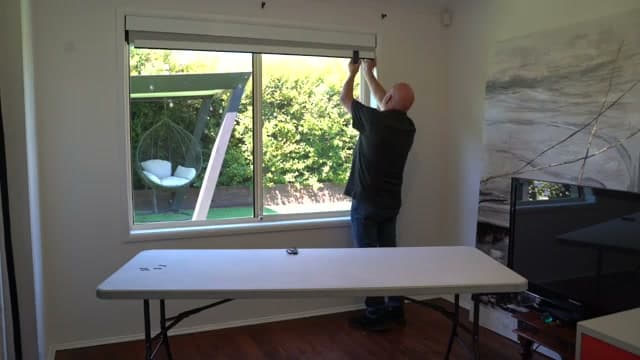
Select the channel you want on the remote (start with 1 for the first blind). Push and hold the Program button on the head of the motor for about a second until the motor jiggles, then press the Up button on the remote. The motor jiggles again — that means it's paired.
- 02
Check the direction, and reverse it if needed
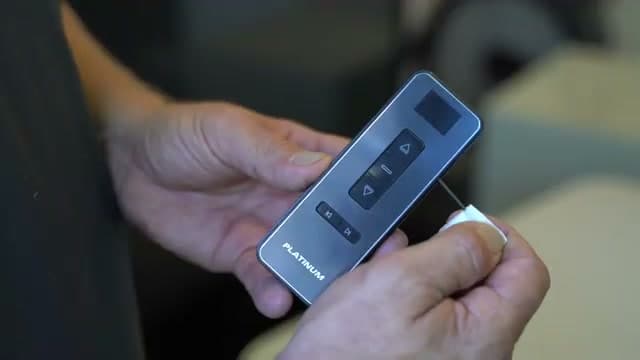
Press Up and watch the blind. If it goes the wrong way, push and hold Stop until you get a jiggle, then push Down. That flips the direction. Re-test before you move on to the limits.
- 03
Set the top limit first (always)
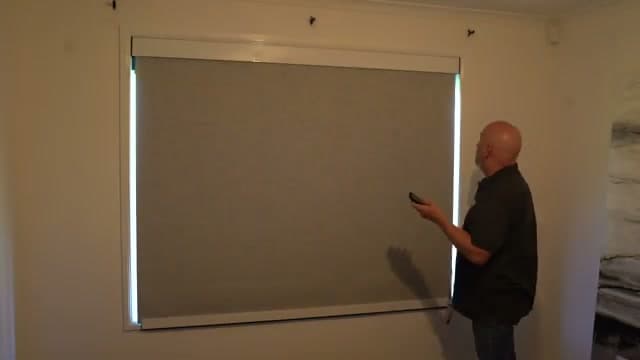
You always set the upper limit first. With a paperclip or blunt end (never anything sharp), push and hold the button inside the Setting Hole on the remote until the blind jiggles. Move the blind to the top position you want — we recommend leaving 50 to 60mm of fabric showing, because the blind runs on gravity and that gives it a good start on the way down. Push and hold the Setting-Hole button again to set the top.
- 04
Set the bottom limit
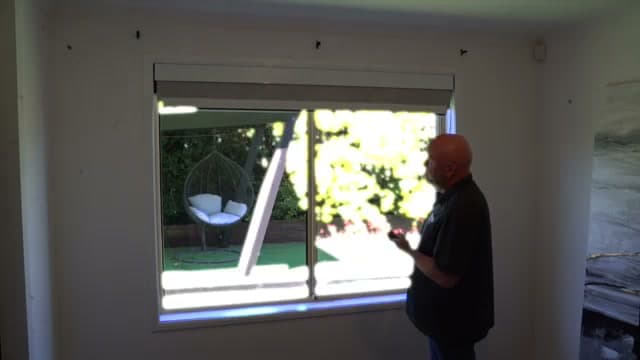
Move the blind down to where you want the bottom to sit. Take it down incrementally until you can see the bare metal on the tube — you want it almost fully unrolled so it rolls back up flat — then bring it back up to the window sill. Push and hold the Setting-Hole button (jiggle), then push and hold it once more. That final press records both limits. Now one press of the button should send the blind to its limit on its own.
- 05
Test it, and adjust a limit if you need to
Run the blind fully up and fully down and check it stops cleanly at both ends. To change a limit later, run the blind to the limit you want to change, push and hold the Setting-Hole button until it jiggles, move the blind to the new position, then push and hold the Setting-Hole button again. Limits are set per motor on each channel, so repeat this for every blind.
Common fixes
Handy things to know
Blind jogging instead of running continuously?
If the blind moves in small increments instead of running smoothly, push and hold Stop until it jiggles, then press Stop once more. Continuous movement comes back.
Group several blinds onto one channel
On the first blind (Channel 1), push and hold Stop until it jiggles, then go to the channel you want the group on and push Up — a jiggle means it's added. Repeat for each blind you want in the group. Grouped blinds live in the CC channel on the 16-channel remote.
Start over with a factory reset
To reset a motor, push and hold Stop until the motor jogs, then push and hold the Program button on the remote. You'll get a jiggle, a pause, then a double jiggle — that double jiggle confirms the reset.
The tool matters
For anything that uses the Setting Hole on the remote, use a paperclip or the blunt end of something similar. Never use anything sharp — it's a small button and it only needs a gentle, firm press.
Common questions on remotes, motors and the hub
- Yes, with the optional RF SmartHub. Pair each blind to the remote first using the steps above, then add it through the free Smart Life app, which works on iPhone and Android. Call 08 8359 5935 if you'd like a hand walking through the hub setup.
- Yes. On the first blind (Channel 1), push and hold Stop until it jiggles, then go to the channel you want and push Up — a jiggle means it's added. Repeat for each blind you want moving together. Grouped blinds live in the CC channel on the 16-channel remote, and one press then moves the whole group.
- Yes. You can pair an extra remote — a spare, or one kept in another room — to a blind that's already set up. On the extra remote, select the channel you want, push and hold the Program button on the motor head until the blind jiggles, then press Up. A second jiggle means it's paired, and both remotes now control that blind. The limits stay exactly as they were. Call 08 8359 5935 if you'd like a hand.
- Push and hold Stop until you get a jiggle, then push Down — that reverses the direction. Re-test both directions, then set the top and bottom limits (top first).
- That's jog mode. Push and hold Stop until it jiggles, then press Stop once more. Continuous movement returns.
- Push and hold Stop until the motor jogs, then push and hold the Program button on the remote. You'll get a jiggle, a pause, then a double jiggle — the double jiggle confirms the reset. You'll need to re-pair and re-set the limits afterwards.
- Replacement remotes are available — call 08 8359 5935 with your order number and we'll send one out. A new remote needs to be paired to each motor again using the same Program-button-then-Up sequence, and the limits stay as they were.
- When the blind won't run all the way to the top or bottom on a single press. The Battery & Charging guide covers the charging routine and where to find the charging cable.
Next step
Paired and limits set? Onto the install.
These pairing and limit steps are part of the full install — see the installation guide for the whole sequence, from mounting to the finished blind. If you hit a snag with pairing or limits, DIY support has seen it all before.
DIY support: 08 8359 5935.